 Great Generate
How to prepare question papers?
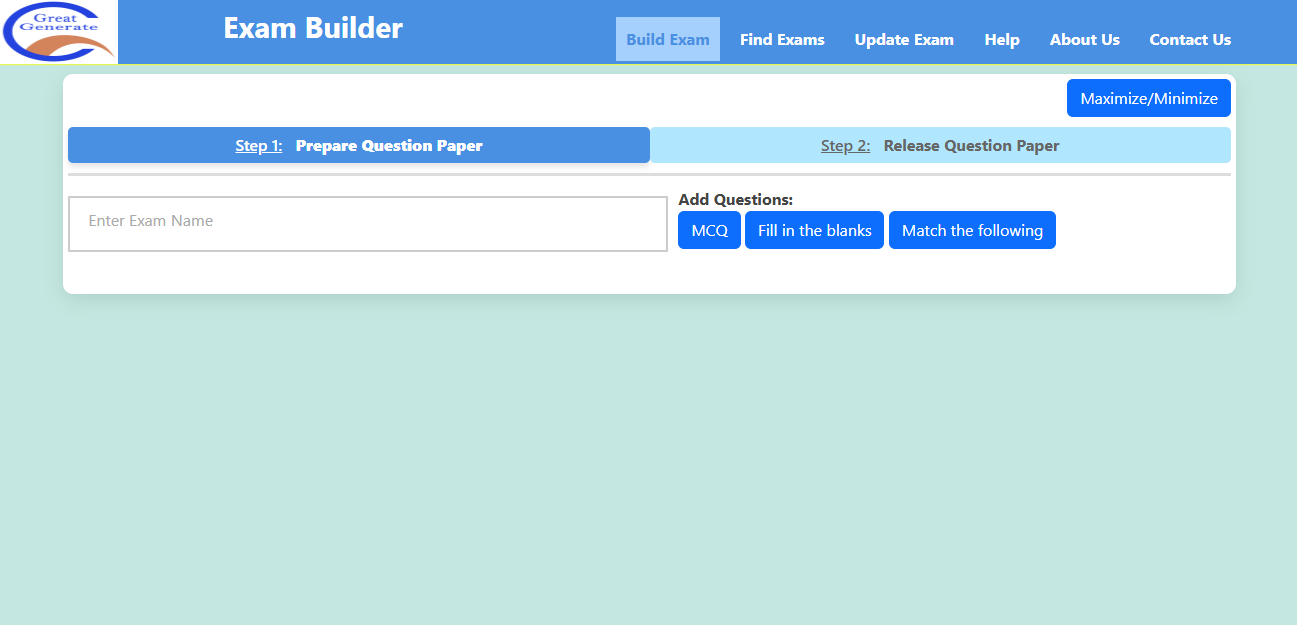
- Go to Exam Builder.
- This is the Exam Builder landing page.
- You can start preparing a question paper from this page.
- Use the title field to set the exam name.
- Choose question types such as MCQ, fill in the blanks, and match the following.
- Click a question type to add questions.
How to set the question paper title or name?
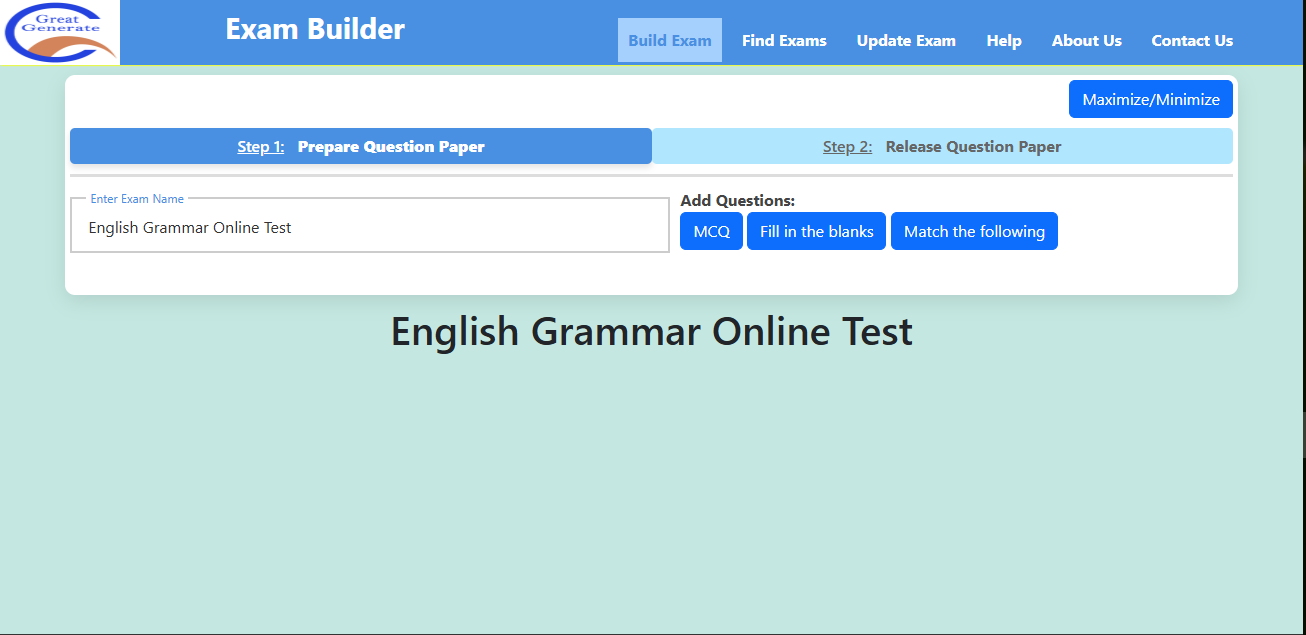
- Enter the exam title or name in the text field.
- The entered exam name will be displayed on the question paper.
How to add MCQ questions?
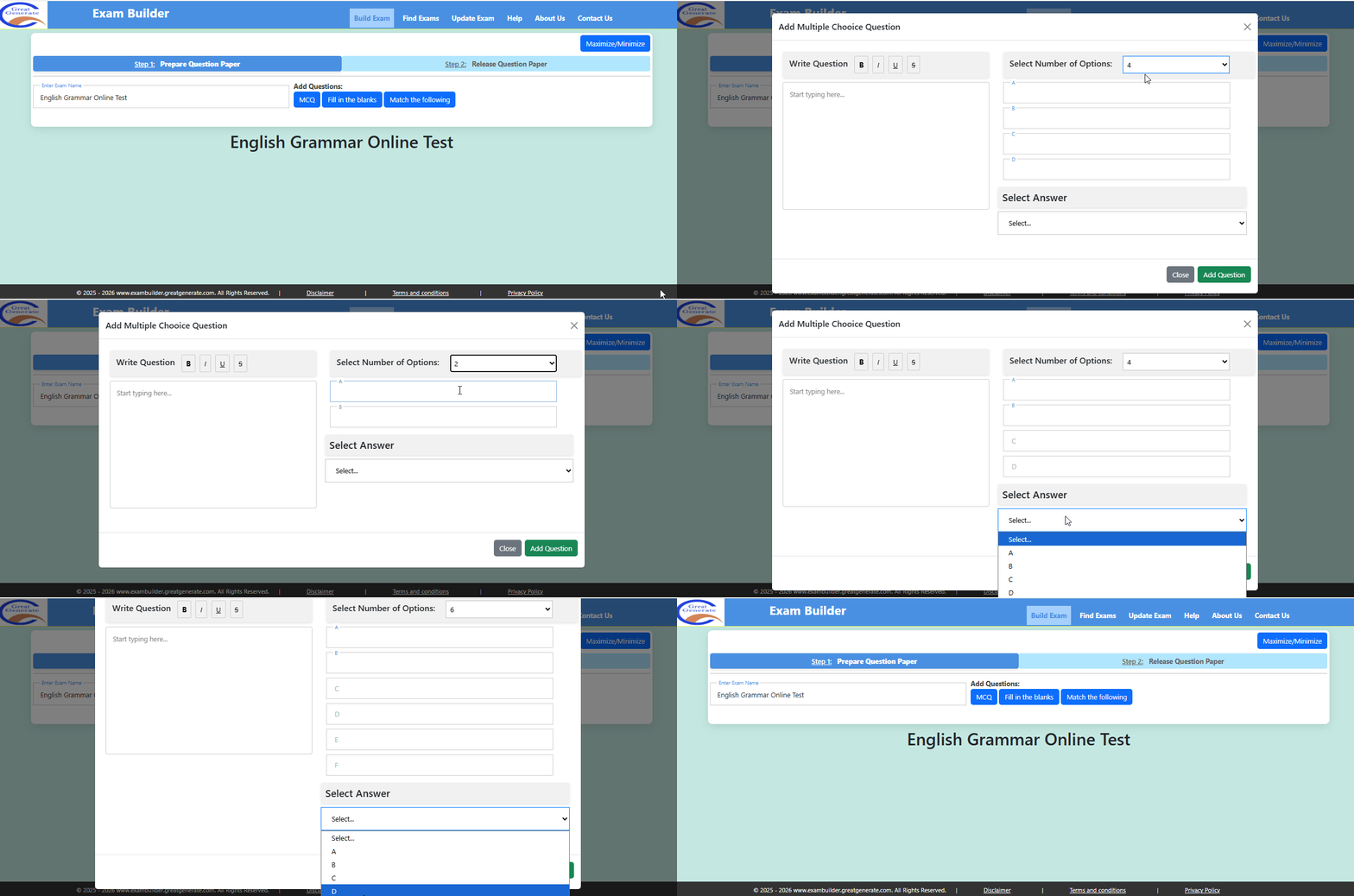
- Click the MCQ button.
- An MCQ panel will appear.
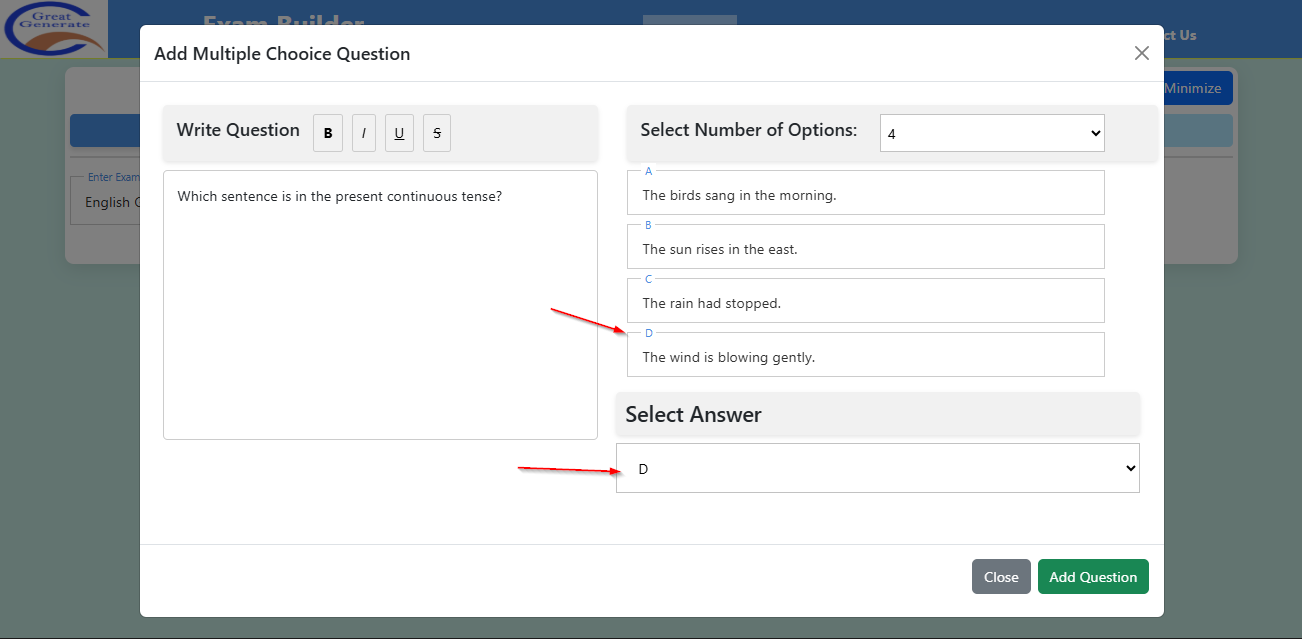
- Enter the question and its options in the MCQ panel.
- Select the correct answer from the Select Answer dropdown.
- Click Add Question.
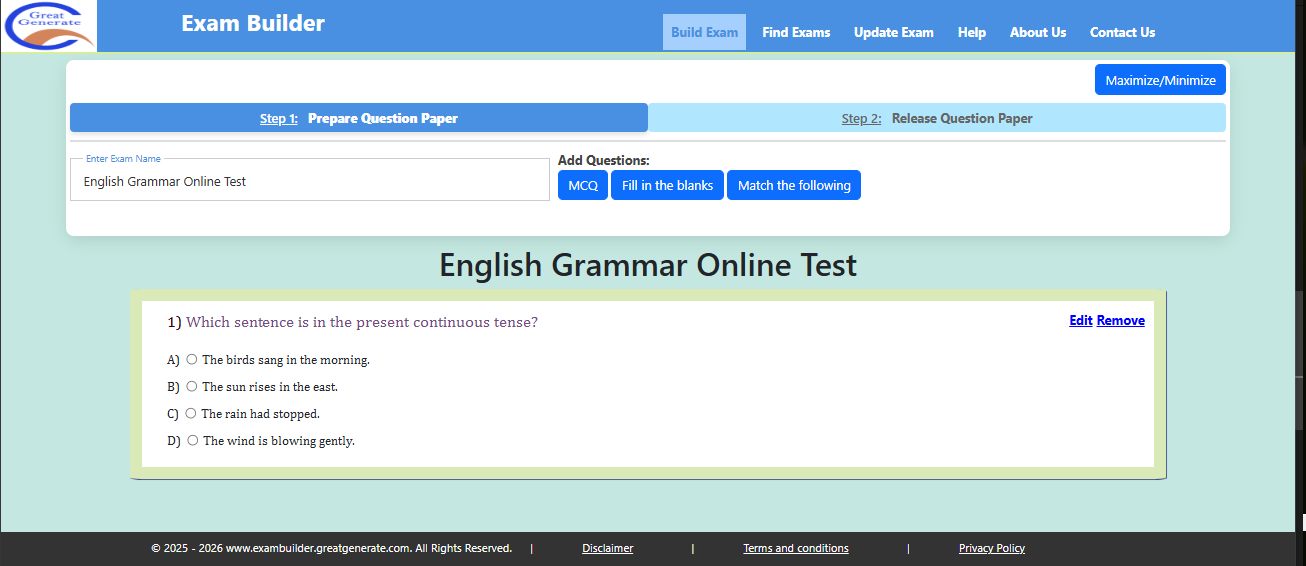
The question is added to the paper. Each added question can also have Edit and Remove actions.
How to add fill-in-the-blank questions?
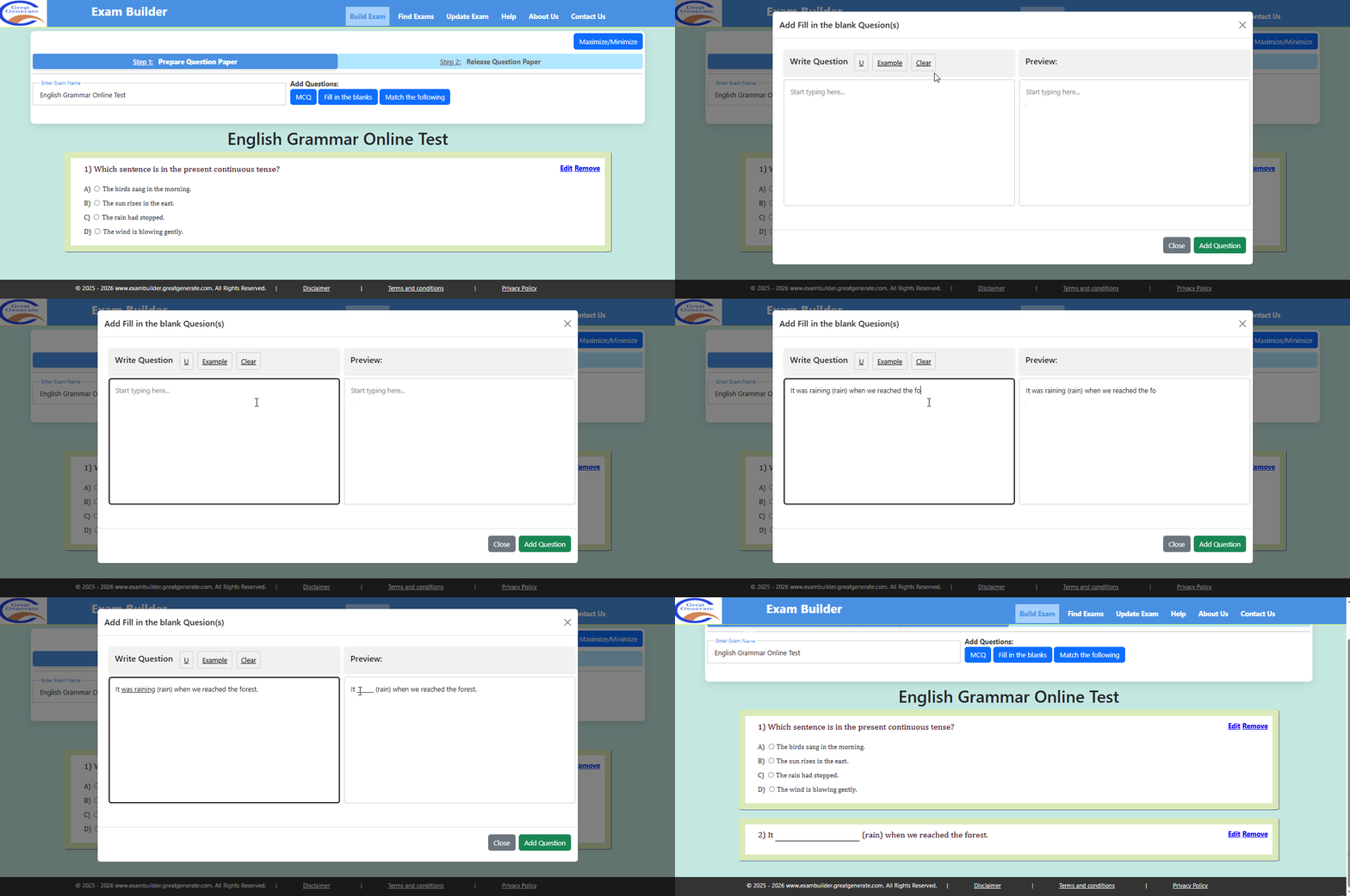
- Click the Fill in the blanks button.
- The fill-in-the-blanks panel will appear.
- Clear the example instruction and enter your question.
- Select the words that should become blanks.
- The underlined selection becomes the answer for that blank.
- Click Add Question to add it to the paper.
How to add match-the-following questions?
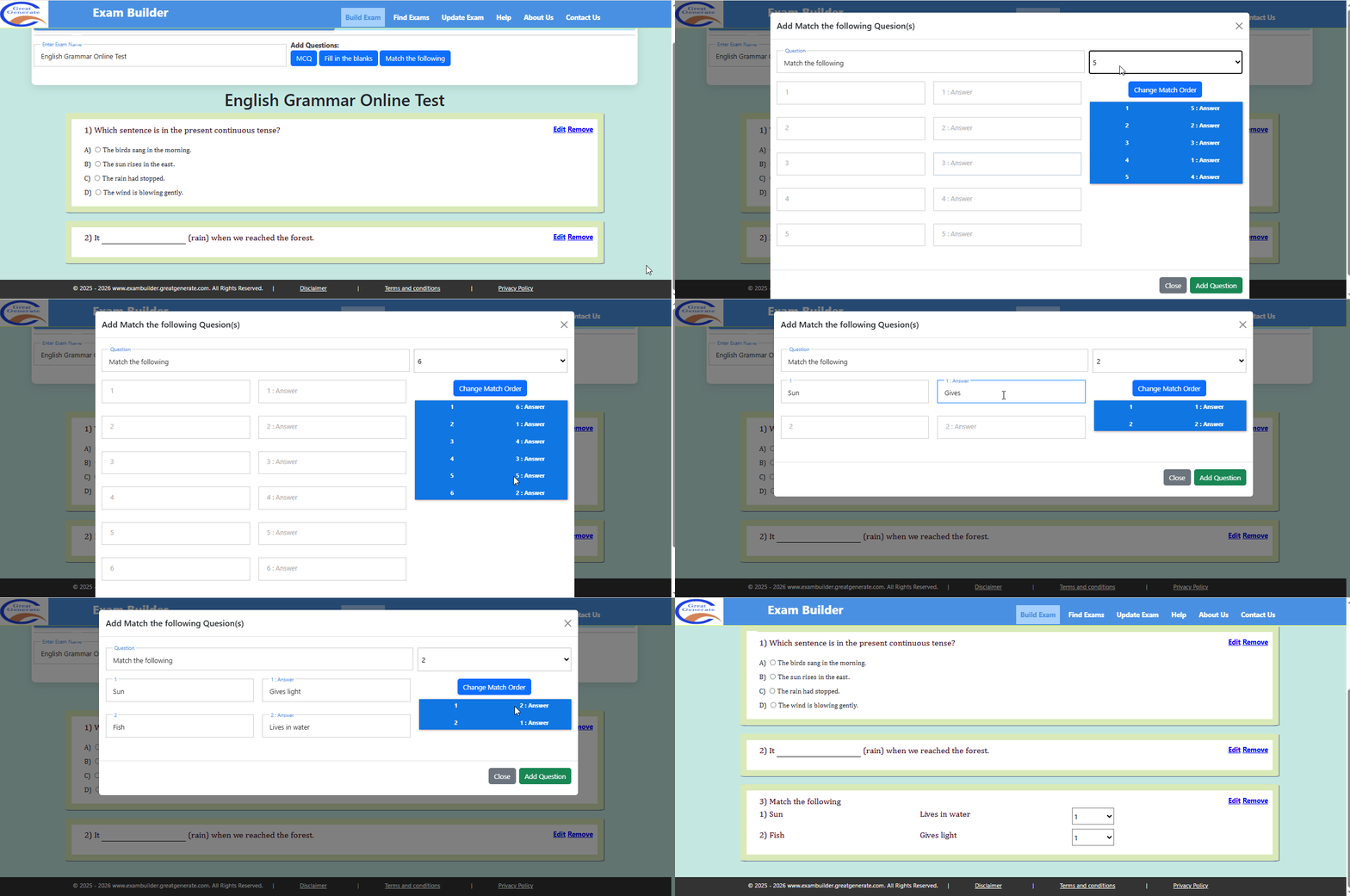
- Click the Match the following button.
- The match panel will appear.
- Select up to six options.
- Add each question and answer side by side.
- Click Change Match Order to set a different order.
- Click Add Question.
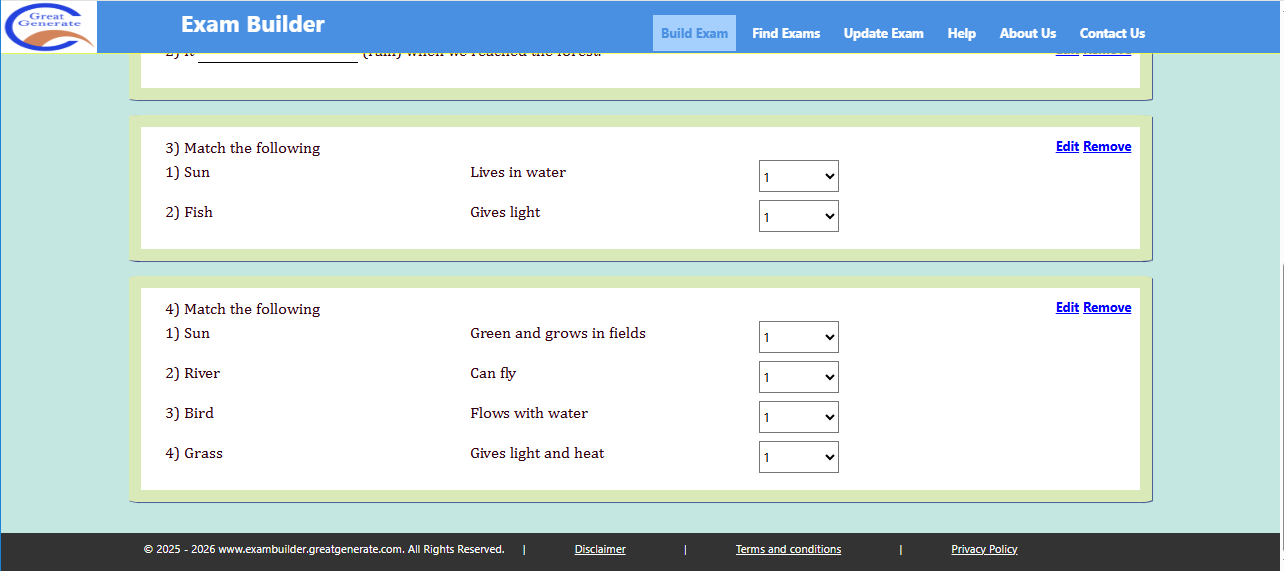
The match question is added to the paper and includes Edit and Remove actions.
How to save and share the question paper link?
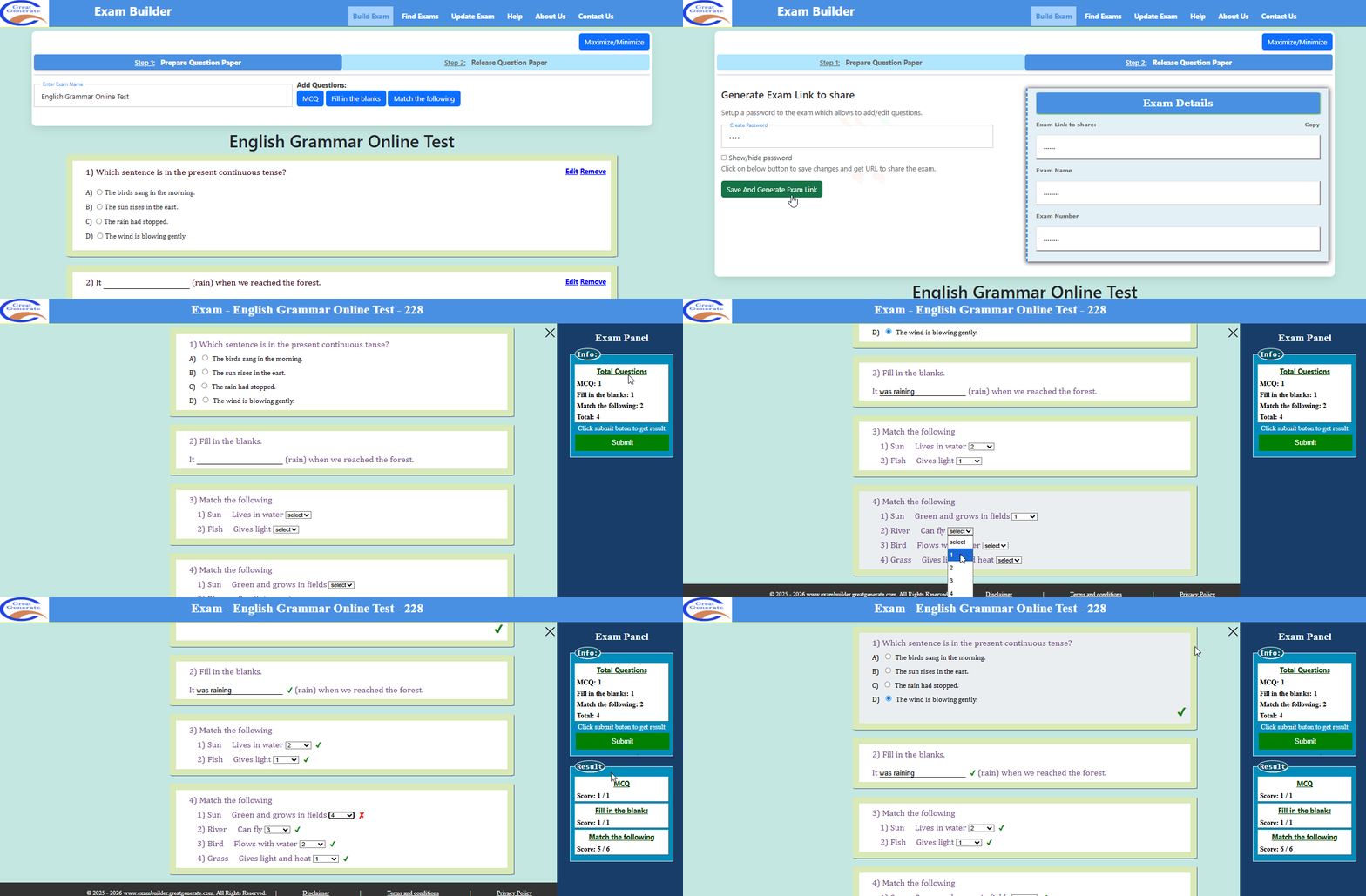
- Finish adding all questions.
- Open the Step 2: Release Question Paper tab.
- Set a password.
- Click Save And Generate Exam Link.
- Find the generated exam link and number under Exam Details.
- Share the generated link with participants.